As a Super Administrator of your Contracts Monitor (CM) enterprise, you can manage and edit contracts created by all users. This article provides step-by-step instructions on how to locate and edit contracts, including published, unpublished, and archived contracts.
Prerequisites
Role: Super Administrator
Locate a Contract
Use your Enterprise view to find the contract you need to edit.
Steps
On the home page, click on the Switch to Enterprise view button on the Personal Dashboard.
-
Under Contracts in the Enterprise Dashboard, find the type of contract you need:
Published: Click on the blue numbered square to the right of the Published heading.
Not published: Click on the blue numbered square to the right of the Not published heading.
Archived: Click on the blue numbered square to the right of the Archived heading.
Alternatively, you can search for a specific contract by clicking the Search button. This takes you to the Find published active contracts page. On the Find published active contracts page, enter keywords into the free-text field. Keywords can include Contract title, Contract description, Reference number, Party name, or Party business number.
Optionally, specify the contract status using the dropdown menu under the Contract Status heading.
Click the Search button to the right of the page to find the contract.
Edit a Published Contract
You have two options for editing a published contract: editing your own contract or impersonating the owner of another contract.
Option 1: Edit your own published contract
On the All published contracts page, click the name of the contract under the Title column.
You'll be directed to the contract's landing page.
Against the relevant sections, click on the Add/Edit, Add, or Link buttons to make changes to the contract.
Make sure you click the Save button to save your changes to the contract.
Option 2: Impersonate the Contract Owner to edit the contract
-
On the All published contracts page, click on the Impersonate link to the right of your desired contract.
Note: On the All published contracts page, you can hover over the name of the owner to view a pop-up bubble detailing their contact information.
While impersonating, click on the My contracts link on the home page.
Search for the desired contract or navigate to it under the Title heading.
Click on the name of the contract to enter its landing page.
Against the relevant sections, click on the Add/Edit, Add, or Link buttons to make changes to the contract.
Click the Save button to save your changes to the contract.
End impersonation by clicking the red Impersonate Mode button in the top right corner and then selecting End impersonating.
Edit an Unpublished or Archived Contract
Edit a Not Published Contract
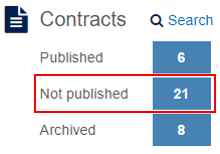
On the All unpublished contracts page, click on the Impersonate link to the right of the desired contract to impersonate the contract owner.
Follow steps 2-8 of the Impersonate the Contract Owner to edit the contract instructions above.
Edit an Archived Contract
To edit an archived contract, you must first unarchive it.
For contracts you do NOT own: Follow steps 1-4 of the Impersonate the Contract Owner to edit the contract instructions above.
-
For contracts you DO own:
Click on the name of the contract under the Title column of the All published contracts page.
Click on the Options and settings button at the top right corner of the contract's landing page.
In the pop-up bubble, click on the blue Unarchive contract link. 4. Click Ok in the browser dialogue box to confirm your decision.
You can then make changes as outlined in the Edit a Published Contract section above.
Results / Validation
After saving your changes:
For Option 1: Edit your own published contract, the contract landing page will display the updated information.
For Option 2: Impersonate the Contract Owner to edit the contract, the contract owner's contract list will reflect the changes, and you will return to your Super Administrator view after ending impersonation.
What's Next / Related
How to Create a New Contract
Reference: Contract Monitor Features
Limits & Notes
Editing is only possible via the Add/Edit, Add, or Link buttons within the contract's landing page.
You must click Save after making changes on a specific detail page.
Impersonation must be ended by clicking the red Impersonate Mode button and selecting End impersonating.